
Getting started
Inside a community.
Every community has the same shape: channels on the left, the conversation in the middle, and its people on the right. The handbook below explains every part, step by step. Further down, take the tour and see the features a community can turn on.
The handbook.
Everything about communities, step by step: joining and taking part, running one, and every feature you can turn on.
Taking part
For everyone: joining, getting around, chatting and voice.
Running a community
For owners, admins and moderators: set up, roles, channels and safety.
Features
One guide per feature: what it’s for, how members use it, how to run it.
Inside a community
Skip the tour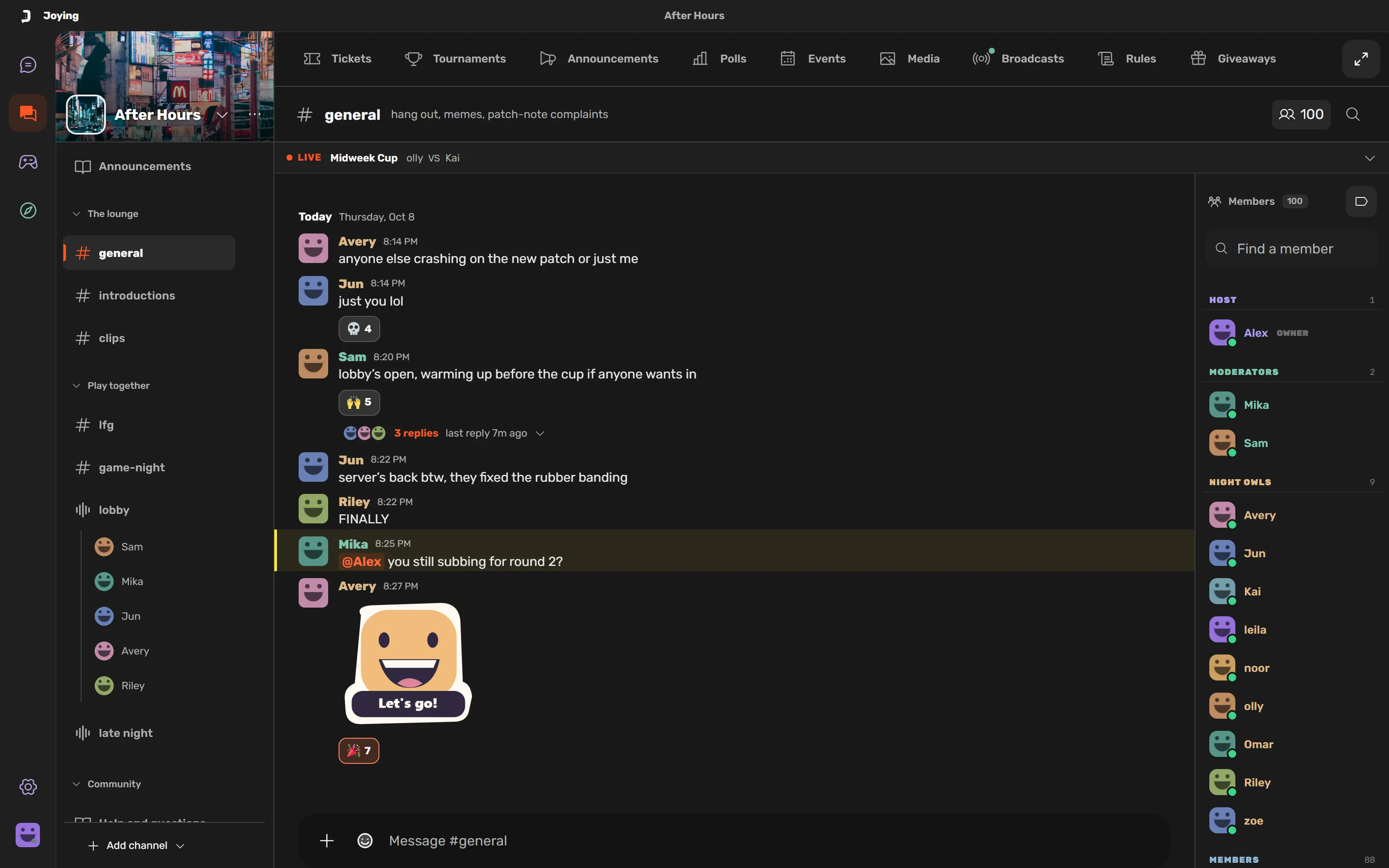
- After Hours
Step inside a community.
Chat, voice, events and the people who make it home, all in one place. Scroll to look around.
- 01
A cover that’s yours.
Your banner, icon and name sit at the top of the sidebar. Click the banner to see the full cover.
- 02
Pick your modules.
Tickets, Tournaments, Announcements, Polls, Events, Media, Broadcasts, Rules and Giveaways. Turn on what your group needs.
- 03
Tournaments go live.
When a match is on, everyone in the community sees it up top: the event and who’s playing.
- 04
Channels for every topic.
Sort them into sections like The lounge and Play together, so everyday chat and game night each have a place.
- 05
See who’s in voice.
Voice channels show who’s already there. Join with one click, and mute or leave whenever you like.
- 06
More than words.
Replies, reactions and stickers keep the chat moving. When someone mentions you, it stands out.
- 07
Roles keep it running.
Hosts, moderators and roles you name yourself, like Night owls. Each has its own color and permissions.
- That’s After Hours
Your people, in one place.
Start a community for your group, or find one to join. Browse communities
Modules
Turn on what
your group needs.
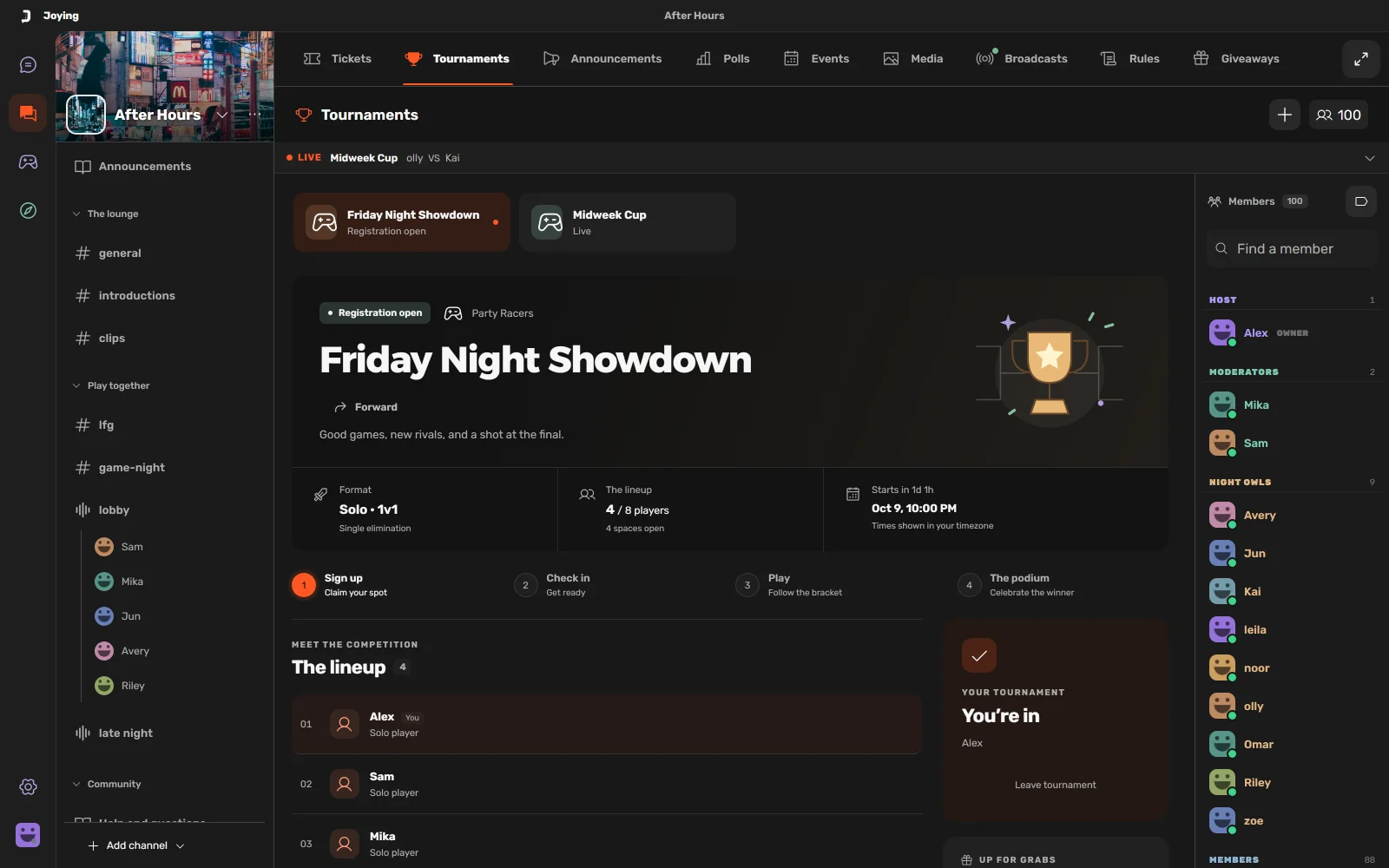
Channels come with every community. Add the rest as you need them: each module you switch on gets its own tab, for everyone.
- Channels
A channel for every topic.
Channels sit in the sidebar, in sections like The lounge and Play together. Need people for a game? Post in #lfg and watch them show up.
- Tickets
Private help, sorted.
Members open a ticket when they need a hand. Staff pick it up, reply, keep private notes, and resolve it in one place.
- Tournaments
Brackets, run for you.
Open sign-ups, check players in, follow the bracket and crown a winner. Live matches show at the top for everyone.
- Announcements
News that stays put.
Pin what matters, schedule posts for later and sort them by topic. Members react, comment and save the ones they need.
- Polls
Let the group decide.
Ask a question, allow one answer or several, and close the vote when you’re ready.
- Events
Plans people show up to.
Going, maybe or can’t go, in one tap. Watch the list fill up, see how many spots are left, and which voice room to join.
- Media
Every screenshot, in one place.
A shared gallery for clips, screenshots and memes. Members react and comment, and you choose which reactions are allowed.
- Broadcasts
Go live together.
Share a stream or a video. Everyone sees when someone is live, and past broadcasts stay ready to watch.
- Rules
Set the tone from day one.
Write a few rules once. New members read and accept them before they join the conversation.
- Giveaways
Prizes, picked fairly.
Set a prize and a time, and choose who can enter. When the timer ends, winners are drawn at random and everyone sees the result.
Start your own
Open Discover to find a community to join, or create one from the community list. Owners turn modules on in Manage, under Features; each one gets its own tab for everyone.